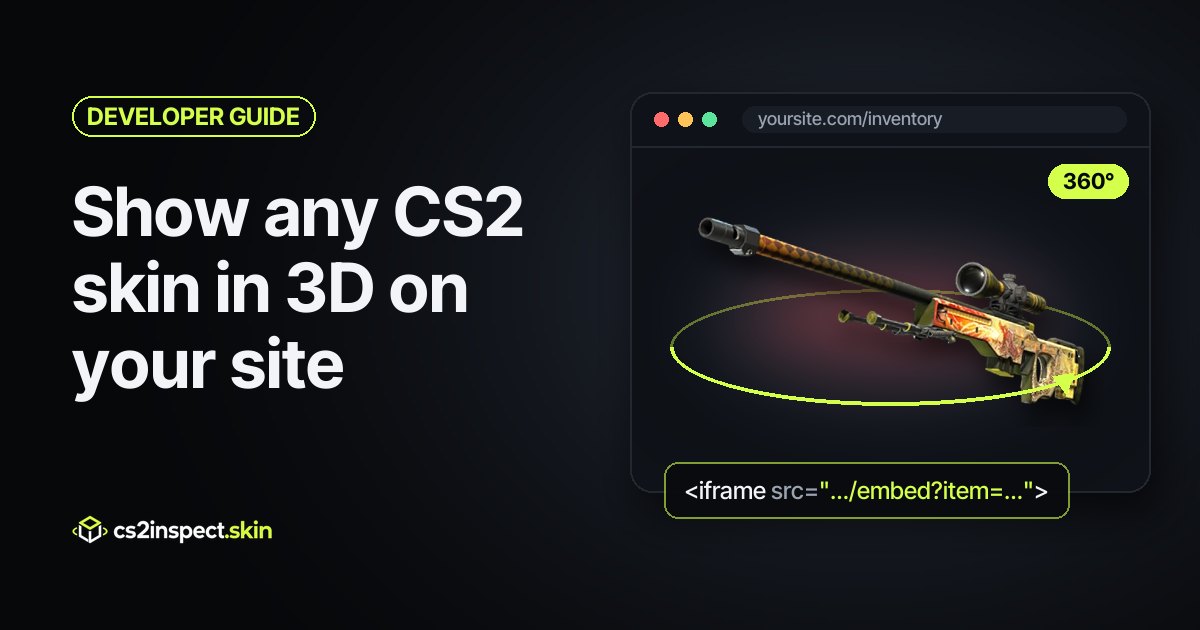
A flat inventory picture shows what a skin is. It does not show what one particular copy looks like: how worn the paint is at its float, where the pattern lands for its seed, or how the stickers sit on it. That is the difference a buyer cares about, and the reason the in-game inspect screen exists. This guide shows how to put that inspect view on your own site — a marketplace listing, an inventory page, a Discord bot's web page, a blog post — as a live 3D model you can drag around, with one HTML tag and no 3D code of your own.
Everything below uses the free cs2inspect embed API. The 3D view on this page is the same embed, so try it before you read on.
<iframe src="https://cs2inspect.skin/embed?key=pk_live_YOURKEY&item=ak-47/case-hardened&wear=0.05&seed=661&spin=10" width="600" height="400" frameborder="0" title="AK-47 | Case Hardened"></iframe>Three ways to show a CS2 skin on a website
There are three realistic options, and they cost very different amounts of work:
- A static image. Steam's economy images and the thumbnails every skin site uses are free and load instantly, but they are one render of one copy from one angle. Float, pattern and stickers are invisible, which is exactly the information a listing needs.
- Build your own 3D viewer. Possible, and it is what this site is — but it is far more than "load a model in three.js". The weapon models and textures have to be extracted from a local Counter-Strike 2 install, each paint style (custom paint, patina, anodized, gunsmith, hydrographic) composites differently, wear has to be driven by the float through the game's own masks, the pattern seed has to move the artwork the way the game does, and stickers need their slot positions per weapon. Then you are hosting gigabytes of assets and redoing part of it after every CS2 update.
-
Embed a viewer that already does that. One
<iframe>pointing atcs2inspect.skin/embed, with the skin, float and seed in its query string. The model, the paint and the renderer come from us; the page and the data stay yours.
The rest of this guide is option three, from the first tag to a production listing page.
Step 1: get a free embed key
The key is how your site identifies itself. It is free, and you need one for every site except this one:
- Sign in at cs2inspect.skin with Steam or an email code.
- Open the account menu and choose API, then New key.
-
List the sites it may run on:
example.com, or*.example.comfor a domain and every subdomain under it. Addlocalhostas well so it works on your dev server — ports are ignored, so 3000, 5173 and 8080 are all covered.
The key starts with pk_live_ and is public: it ends up in your page's HTML, where anyone
can read it. That is by design. What it authorises is the list of sites next to it, which only you can change, so a
copied key does nothing on somebody else's domain. The API panel shows how many times each key loaded and on which
sites, and you can switch a key off there at any time.
Step 2: paste one iframe
This is the whole integration for a simple page. Swap in your key and any skin on the site — the two slugs in our
own URLs are the item, so cs2inspect.skin/ak-47/redline becomes
item=ak-47/redline:
<iframe
  src="https://cs2inspect.skin/embed?key=pk_live_YOURKEY&item=ak-47/redline&wear=0.18&seed=661&spin=6"
  width="600" height="400" frameborder="0" loading="lazy"
  title="AK-47 | Redline (Field-Tested)"></iframe>
The frame is transparent by default, so your own background shows through it, and the weapon is framed to fit whatever size you give it. Make it responsive with plain CSS:
.skin-3d { width: 100%; aspect-ratio: 16 / 10; border: 0; }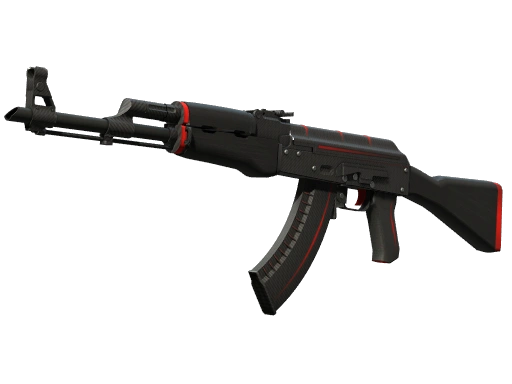
Step 3: name the exact copy you want to show
A listing is about one copy of a skin, not the skin in general. The embed takes the same facts an inspect link carries, in whichever shape your data already has:
-
By slug —
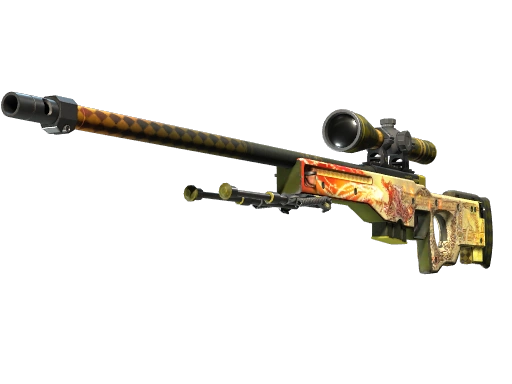
item=awp/asiimov. Easiest when you link to skins by name. -
By market name —
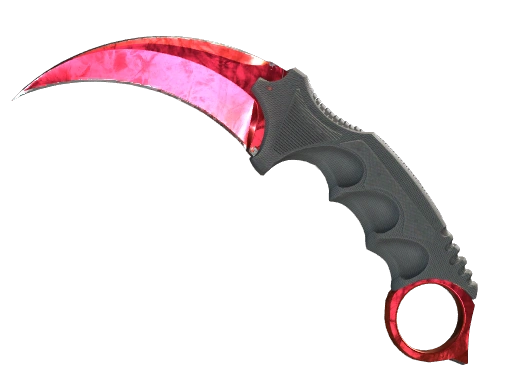
name=★ StatTrak™ Karambit | Doppler (Factory New). Exactly the string Steam and every marketplace store. The ★, the exterior suffix and "Souvenir" are understood, and StatTrak™ switches the counter on. -
By game indexes —
weapon=ak47&paint=44. The model key and paint index, as they appear in an inspect link's data. Best if you already decode inspect links or read item data from an API.
Then describe the copy itself:
-
wear— the float, 0 to 1, clamped to the skin's own range. -
seed— the pattern seed, 0 to 1000. On Case Hardened, Fade and Doppler this is the whole story; on most other skins it moves the artwork a little. st=1for a StatTrak™ module,nametag=…for a name tag.-
stickers=0:5032,2:4501—slot:indexpairs, with optional placement after them, andcharm=indexorindex:seed.
So a real listing — a Field-Tested Case Hardened at 0.2213, seed 387, StatTrak™, two stickers — is one URL:
https://cs2inspect.skin/embed?key=pk_live_YOURKEY
  &weapon=ak47&paint=44&wear=0.2213&seed=387&st=1
  &stickers=0:5032,2:4501&card=0
(Shown on several lines for reading; in the page it is one string.)
Step 4: make it look like part of your page
A handful of parameters cover most designs:
bg=0b0d12paints a background; leave it out to stay transparent.-
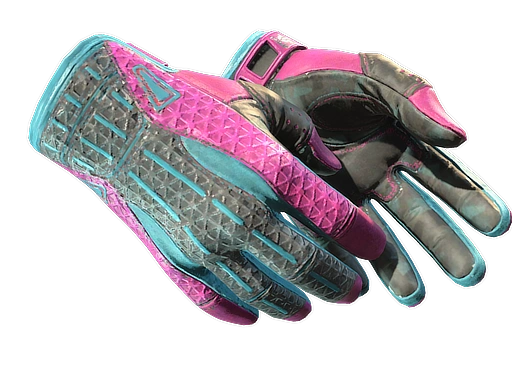
scene=dust2(orvanity,mirage,inferno,nukeand more) puts the weapon in front of a map backdrop, lit by that map's own lights. spin=8turns it slowly; it pauses while someone drags.card=0removes the name card when your page already shows the name, float and seed.view=handsshows it held in first person, as in game — click fires and F inspects.gloves=sport-gloves/viceputs gloves on those hands.accent=ff5c8aandloader=spinnermatch the loading state to your brand.-
logo=iconorlogo=minimalandlogopos=trrestyle and move the wordmark; the name card and controls make room for it. controls=1adds buttons for the view, inspect and the background.
The full list is in the parameter reference, and the playground lets you switch each one on and copy the result.
Step 5: change it live with JavaScript
If your page lets someone pick a float, browse a pattern or try stickers, reloading the iframe on every change is
slow. The optional loader, embed.js (3 KB, no dependencies), creates the frame and updates it in place:
<div id="viewer" style="height:420px"></div>
<input id="float" type="range" min="0" max="1" step="0.001" value="0.15">

<script src="https://cs2inspect.skin/embed.js"></script>
<script>
  var view = CS2Inspect.embed("#viewer", {
    key: "pk_live_YOURKEY",
    item: "ak-47/case-hardened",
    wear: 0.15,
    seed: 661,
    spin: 8,
  });

  // Only the fields you pass change; the model is not reloaded.
  document.getElementById("float").addEventListener("input", function (e) {
    view.update({ wear: Number(e.target.value) });
  });

  view.on("ready", function (e) {
    console.log("showing", e.item.weaponName, e.item.finishName, e.item.wear, e.item.seed);
  });
  view.on("error", function (e) {
    console.warn(e.reason, e.message); // see "When it does not load" below
  });
</script>
The same object has view.setView("hands"), view.setScene("mirage"),
view.setGloves("sport-gloves/vice", 0.15), view.inspect() and
view.resetView(). If you would rather build the iframe yourself, CS2Inspect.url(spec)
returns the URL, and every call is a plain postMessage underneath — the demo at the top of this page uses
exactly that.
A React component
In React, Vue or Svelte, the iframe is all you need. Build the query from props and let the browser reload it when they change:
const EMBED_KEY = "pk_live_YOURKEY";

export function SkinViewer({ marketName, float, seed, stickers, height = 420 }) {
  const params = new URLSearchParams({ key: EMBED_KEY, name: marketName, card: "0", spin: "6" });
  if (float != null) params.set("wear", String(float));
  if (seed != null) params.set("seed", String(seed));
  if (stickers) params.set("stickers", stickers); // "0:5032,2:4501"

  return (
    <iframe
      src={`https://cs2inspect.skin/embed?${params}`}
      title={marketName}
      loading="lazy"
      allow="fullscreen"
      style={{ width: "100%", height, border: 0 }}
    />
  );
}

// <SkinViewer marketName="AWP | Asiimov (Field-Tested)" float={0.2604} seed={412} />
For a slider that changes on every frame, keep the iframe mounted and send updates with embed.js or
postMessage instead, so the model is loaded once.
Pages with many skins: load 3D on demand
Every embed loads a weapon model and several megabytes of texture, and requests are metered per visitor. A grid of fifty live 3D views is slow for your visitor and will hit that limit. The pattern that works on inventory and search pages: show your normal thumbnail, and swap in the 3D view when someone asks for it.
<button class="view-3d" data-name="AWP | Asiimov (Field-Tested)" data-wear="0.2604" data-seed="412">
  <img src="/thumbs/awp-asiimov.webp" alt="AWP | Asiimov (Field-Tested)" width="256" height="192">
  View in 3D
</button>

<script>
  document.addEventListener("click", function (e) {
    var b = e.target.closest(".view-3d");
    if (!b) return;
    var f = document.createElement("iframe");
    f.src = "https://cs2inspect.skin/embed?" + new URLSearchParams({
      key: "pk_live_YOURKEY", name: b.dataset.name, wear: b.dataset.wear, seed: b.dataset.seed, spin: 8,
    });
    f.title = b.dataset.name;
    f.style.cssText = "width:100%;aspect-ratio:4/3;border:0";
    b.replaceWith(f);
  });
</script>
On a single-item page — one listing, one skin — load the embed directly with loading="lazy", which
embed.js already sets for you.
Keep your page's SEO in your own HTML
Search engines treat what is inside an iframe as belonging to the framed page, not yours. The 3D view makes a page
better for people; it does not put the skin's name into your page for Google. So keep the facts in your own markup:
the skin's full name in a heading, the float, seed and price as text, a normal <img> with alt text
for image search, and a title on the iframe for screen readers. The embed then adds to a page that
already ranks on its own.
When it does not load
The frame always says what is wrong, and with embed.js the same thing arrives as an error
event with a reason:
-
origin_not_allowed— the most common one. The page's domain is not on the key's list. Add it in the API panel; rememberwww.example.comandexample.comare different unless you use*.example.com. no_keyorbad_key— thekeyis missing or mistyped.revoked— the key was switched off. Switch it back on in the API panel.-
no_origin— you opened the embed URL directly in a tab. It has to be framed by a page; test it inside an iframe onlocalhost. unknown_item— no skin answers to that slug, market name or paint index. Check the spelling.rate_limited— too many embeds at once from one visitor. Load them on demand, as above.
Questions people ask
Is it free?
Yes. On the free Basic plan the embed carries a small cs2inspect.skin wordmark, which links to the skin and pays for
the bandwidth every load uses. You choose how it looks and where: logo=icon or logo=minimal
for a quieter mark, and logopos=br, tl or tr to move it out of the bottom-left
corner. Accounts on the Premium plan can remove it entirely with logo=none.
Does it work on phones?
Yes. It renders with WebGL in the visitor's browser, and on a touchscreen dragging orbits the weapon just as the mouse does on desktop.
Can I show the inspect animation, like in game?
With view=hands the weapon is held in first person; press F or call
view.inspect() to play the inspect.
Which skins can I embed?
Every finish the viewer has — guns, knives and gloves, with stickers and charms. If it opens on cs2inspect.skin, it embeds.
Ready to try it? Sign in, make a key in the API panel, and paste the tag from the demo at the top of this page. The API documentation has every parameter and a playground to build the tag visually.